The Communication Grid
The heart of Pie Talker: a grid of vocabulary tiles organized into folders. Tap a tile to speak a word. Navigate folders with breadcrumbs. Search across all vocabulary instantly.
How the Grid Works
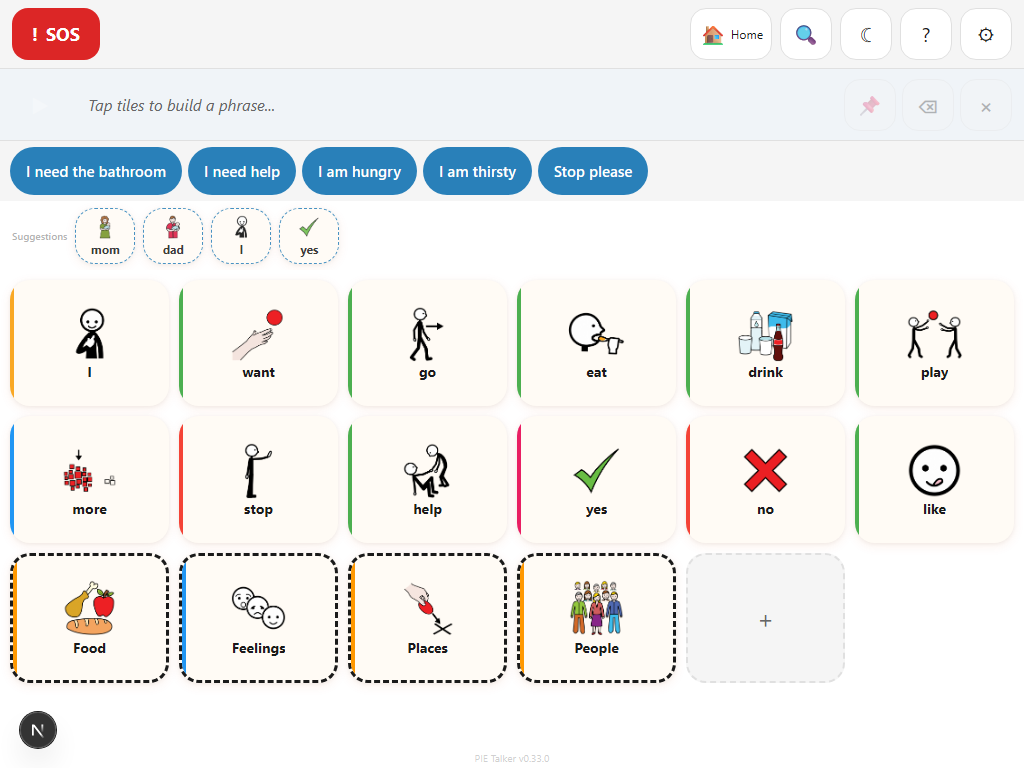
The communication grid is where everything happens. It fills most of the screen with large, tappable tiles — each representing a word, phrase, or folder. Tap a tile and the device speaks the word aloud using text-to-speech. That is the core interaction: tap to speak.
Tiles are arranged in a grid layout that adapts to your device and orientation. On a tablet in landscape, you might see a 6-column grid. On a phone in portrait, the layout shifts to fewer columns with larger tiles. The goal is always the same: every tile should be easy to see and easy to tap.
Above the grid, you will find the phrase strip (where words accumulate as you build a sentence), the quick phrases bar, and the prediction row. Below those, the grid fills the remaining screen space. The communication interface is sacred — nothing interrupts it. No modals, no pop-ups, no loading screens will ever block the grid while someone is trying to communicate.
Fitzgerald Key Color Coding
Tiles are color-coded using the Fitzgerald Key, a system widely used in AAC and special education to help communicators understand word categories at a glance. The color system can be toggled on or off in Settings → Vocabulary.
People / Pronouns
Yellow — I, you, he, she, Mom, teacher
Verbs / Actions
Green — go, eat, want, play, help
Adjectives / Descriptors
Blue — big, happy, more, hot, good
Nouns
Orange/Pink — ball, water, dog, book, car
Social / Interjections
Purple — hi, bye, please, thank you, sorry
Miscellaneous
White — numbers, letters, prepositions
Folder navigation with breadcrumbs
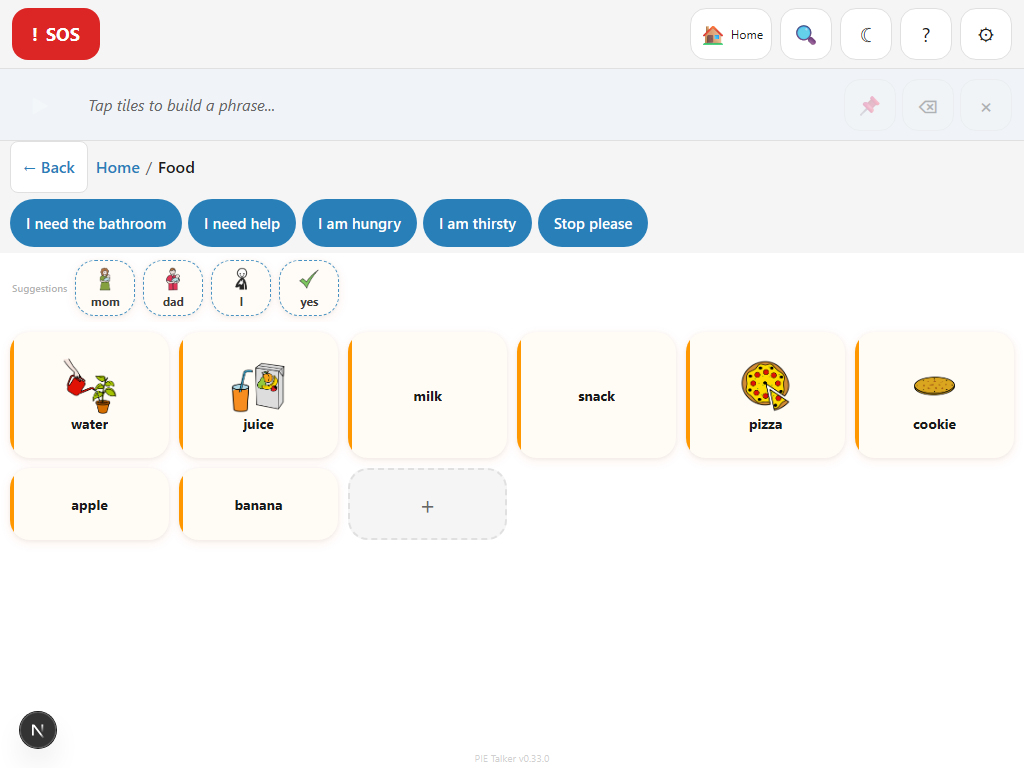
Vocabulary is organized into folders — Food, People, Feelings, Actions, Places, and more. Tap a folder tile to open it and see the words inside. The breadcrumb trail at the top shows where you are in the hierarchy.
- Tap any breadcrumb segment to jump directly back to that level
- The Home button is always one tap away, no matter how deep you navigate
- Folders can contain other folders for deeper organization
- The breadcrumb trail never obscures the grid — it sits in a compact bar above
This system lets you keep hundreds of vocabulary words organized without overwhelming the communicator. At any given moment, only the relevant words for the current folder are visible.
Search Across All Vocabulary
Sometimes you know the word you need but do not know which folder it is in. The search function lets you type a word and find it instantly across the entire vocabulary tree — including all nested folders.
Search results appear as you type. Tap a result to speak the word, or navigate to its location in the folder tree. Search is especially useful for caregivers and therapists who are learning the vocabulary layout, or for advanced communicators who prefer typing to navigate.
Search matches against tile labels in all languages. If you have dual-language labels enabled, you can search in either language. Results are ranked by relevance and show the folder path so you know where each word lives.
Grid Density and Communication Stages
The number of tiles visible on the grid depends on the communicator's stage. This is one of the most important features in Pie Talker — it prevents the grid from being overwhelming for beginners while giving advanced users access to everything they need.
How stages affect the grid
- Stage 1 — Beginning Communicator: A small number of high-frequency tiles. Large, easy to target. Perfect for first-time AAC users.
- Stage 2 — Early Words: More tiles appear, covering basic needs and social words. Still visually simple.
- Stage 3 — Building Sentences: A balanced grid with enough vocabulary to construct multi-word phrases. This is the default for Quick Start.
- Stage 4 — Confident Communicator: Dense grid with a wide vocabulary. Folders contain more words. Prediction plays a larger role.
- Stage 5 — Fluent AAC User: Maximum density. Full vocabulary access. Keyboard-style layout options. For experienced AAC users who need speed.
You can change the communication stage at any time in Settings → Profile. The grid updates immediately. This makes it easy to scale the app as a communicator grows — start at Stage 1 and move up as skills develop, without ever needing to switch to a different app.
Types of Tiles
Not every tile on the grid does the same thing. Understanding the three tile types helps caregivers organize vocabulary effectively and helps communicators predict what will happen when they tap.
Word Tiles
The most common tile type. Tapping a word tile speaks the word aloud and adds it to the phrase strip. Word tiles display a symbol (from ARASAAC or a custom image) and a text label. Examples: "want," "water," "happy," "Mom."
Folder Tiles
Tapping a folder tile opens a sub-grid with more vocabulary inside. Folder tiles have a distinct visual indicator (typically a small folder icon in the corner) so communicators can tell them apart from word tiles. Examples: "Food," "Feelings," "Places."
SOS Tile
The emergency tile is always visible, always accessible, regardless of which folder you are in or how deep in the navigation you have gone. Tapping it speaks an emergency alert. It cannot be accidentally hidden, moved, or deleted. This is a safety feature required by AAC best practices.
The grid works with everything else
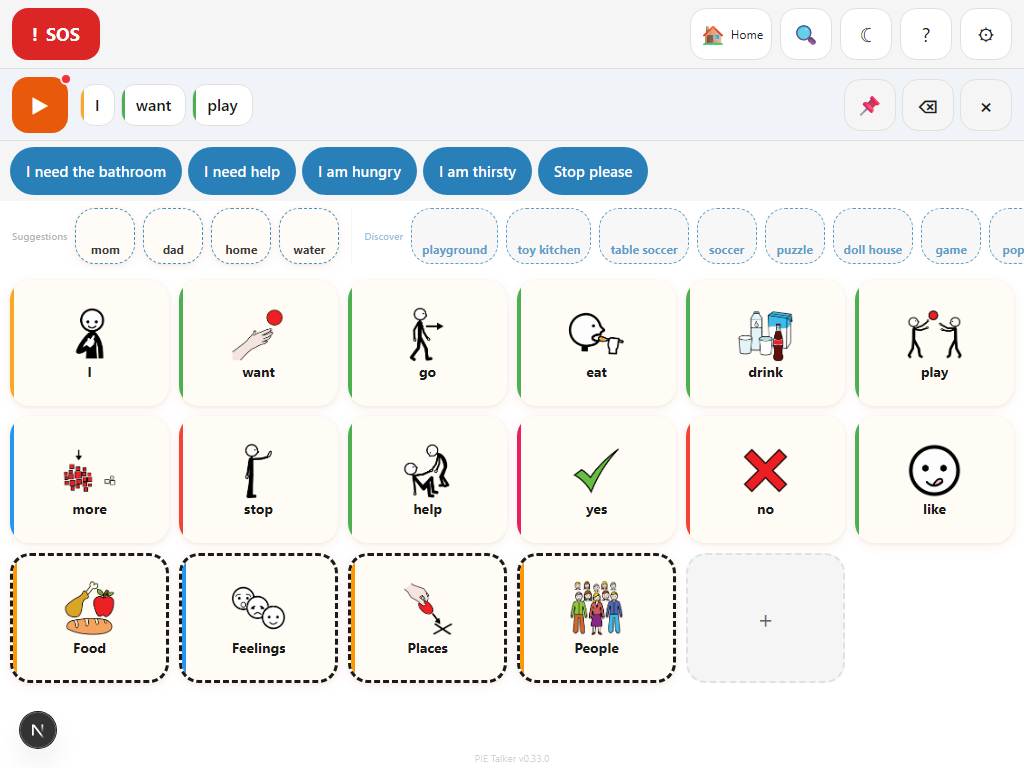
The grid is the foundation, but it works in concert with the rest of the app. Words you tap accumulate in the phrase strip. Predictions appear based on what you have already said. Quick phrases sit above the grid for rapid access to common sentences.
Every tile can be customized — change the label, swap the symbol, add a personal photo, fix the pronunciation, or record audio in a familiar voice. Long-press any tile to open the editor. The grid is the starting point; customization makes it personal.
Explore more
Two minutes to your first word
No accounts. No downloads. Open the link and start communicating.
Start Talking — Free