Build phrases. Speak sentences.
Tap tiles to build a phrase word by word, then speak the whole sentence at once. Quick phrases give you one-tap access to things you say every day.
The Phrase Strip
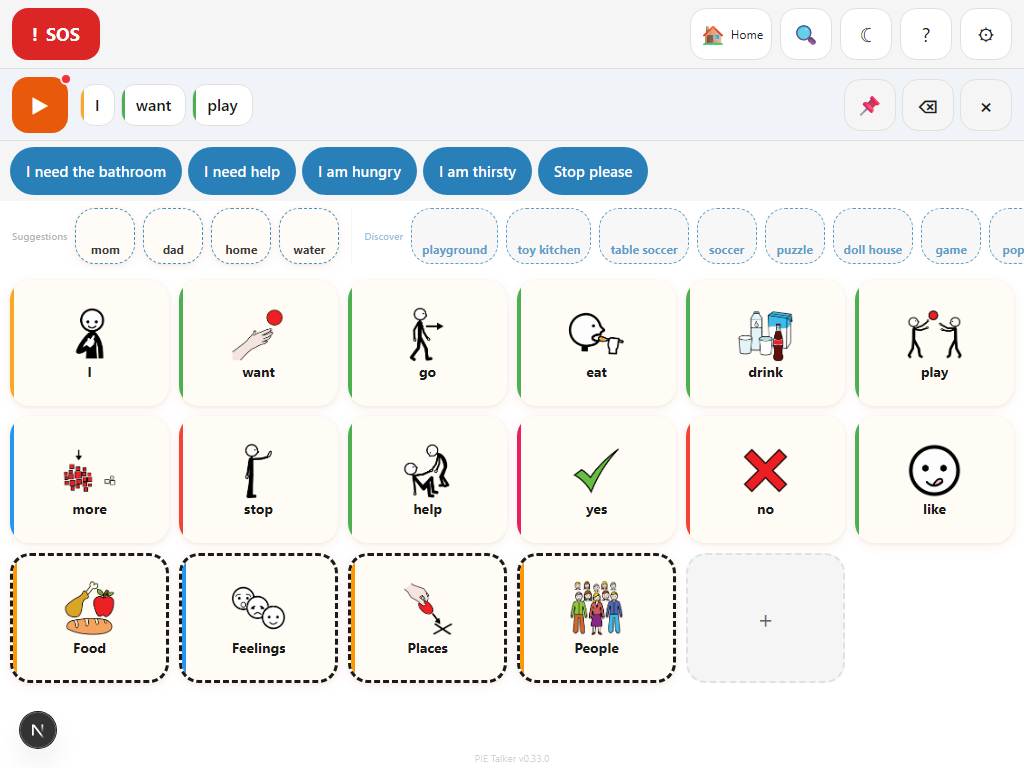
The phrase strip sits at the top of the communication screen. Every time you tap a tile on the grid, the word is added to the strip. The strip shows the words in the order you tapped them, building a sentence from left to right.
When you are ready to speak the complete phrase, tap the green Speak button. The device reads the entire sentence aloud using text-to-speech. The result sounds natural — the TTS engine processes the full phrase as a sentence, not word by word, so the intonation and rhythm sound like natural speech.
Step by step
- Tap a tile on the grid — the word appears in the phrase strip and the individual word is spoken aloud
- Tap more tiles to add more words — each word appends to the right side of the strip
- Review the phrase in the strip — you can see the full sentence before speaking it
- Tap the green Speak button — the entire phrase is read as one sentence
- The strip stays in place after speaking, so you can speak the same phrase again or continue building
A communicator taps: "I" → "want" → "water" → "please"
The phrase strip shows: "I want water please"
They tap the Speak button, and the device says: "I want water please" as a natural sentence.
Phrase Strip Controls
Three controls sit alongside the phrase strip. They are always visible and large enough to tap easily, even for communicators with limited motor control.
Speak
The green Speak button reads the entire phrase aloud. It is the largest and most prominent control in the strip area. If the strip is empty, tapping Speak does nothing — there is no error message or disruptive feedback, because nothing should interrupt the communication flow.
Clear All
Removes all words from the phrase strip at once. Use this to start a new sentence from scratch. This action clears the strip immediately — there is no confirmation dialog, because speed matters more than preventing mistakes in a communication tool.
Delete Last Word
Removes only the most recently added word from the strip. If you tapped the wrong tile, use this to correct the mistake without losing the rest of the phrase. Tap it repeatedly to remove multiple words one at a time.
Quick Phrases: one tap, full sentence
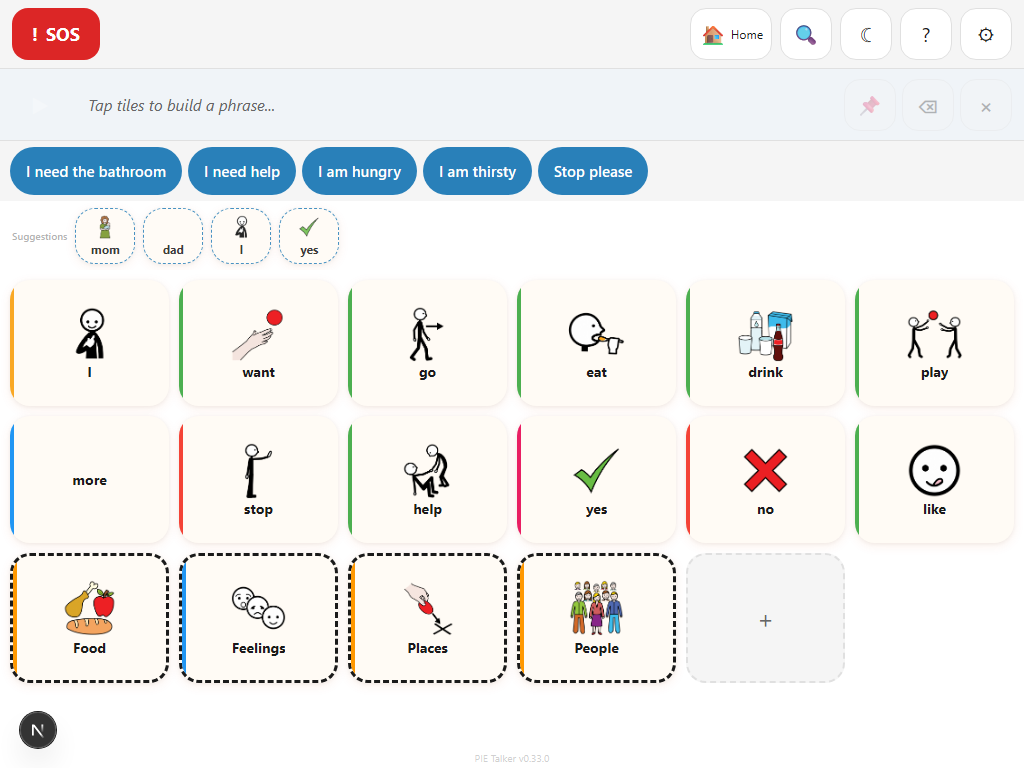
Above the main grid, the quick phrases bar provides instant access to things you say frequently. Each quick phrase is a single button that speaks an entire sentence when tapped. No building required — one tap, one sentence.
- Pre-loaded with common phrases: "I need help," "Yes please," "No thank you," "I don't know," and more
- Fully editable — change the text, add new phrases, remove ones you do not use
- Always visible above the grid, regardless of which folder you are in
- Scrollable if you add more phrases than fit on one row
Why quick phrases matter in AAC
Many AAC interactions are not novel sentences. They are things the communicator says dozens of times a day: greetings, requests for help, yes/no responses, social niceties. Building these from individual tiles every time is slow and frustrating.
Quick phrases solve this by giving instant access to the communicator's most frequent full sentences. A single tap replaces what would otherwise be 3-5 tile taps plus a Speak button press. For a communicator who uses the app all day, this saves hundreds of taps.
Customizing quick phrases
The default quick phrases cover the most common needs, but every communicator is different. To customize quick phrases, go to Settings → Vocabulary → Quick Phrases. You can:
- Edit the text of any existing quick phrase
- Add new quick phrases with any text you want
- Remove phrases that are not relevant
- Reorder phrases so the most-used ones appear first
Consider adding quick phrases for specific situations: "I need the bathroom" for school, "Can I have more?" for mealtimes, "That hurts" for medical appointments. The quick phrases bar adapts to whatever the communicator needs most.
Tips for Effective Phrase Building
After you tap a word, the prediction row updates to show likely next words. If the word you want appears in the predictions, tap it there instead of navigating to a folder. This can cut phrase-building time in half for common sentences.
AAC communication does not require complete sentences. "Want water" is just as valid as "I want water please." The goal is communication, not grammar. Let the communicator express themselves at whatever complexity feels natural for their stage.
You can open different folders while building a phrase. The phrase strip keeps its contents as you navigate. Tap "I" from the main grid, open the Food folder and tap "pizza," then go back home and tap "please." The strip remembers everything.
Every tile speaks its word immediately when tapped, even as it gets added to the strip. This gives the communicator two ways to communicate: quick single words (just tap) or constructed phrases (build in the strip, then tap Speak). Both are valid. Let the communicator choose what works in the moment.
Explore more
Two minutes to your first word
No accounts. No downloads. Open the link and start communicating.
Start Talking — Free