Customizing Tiles
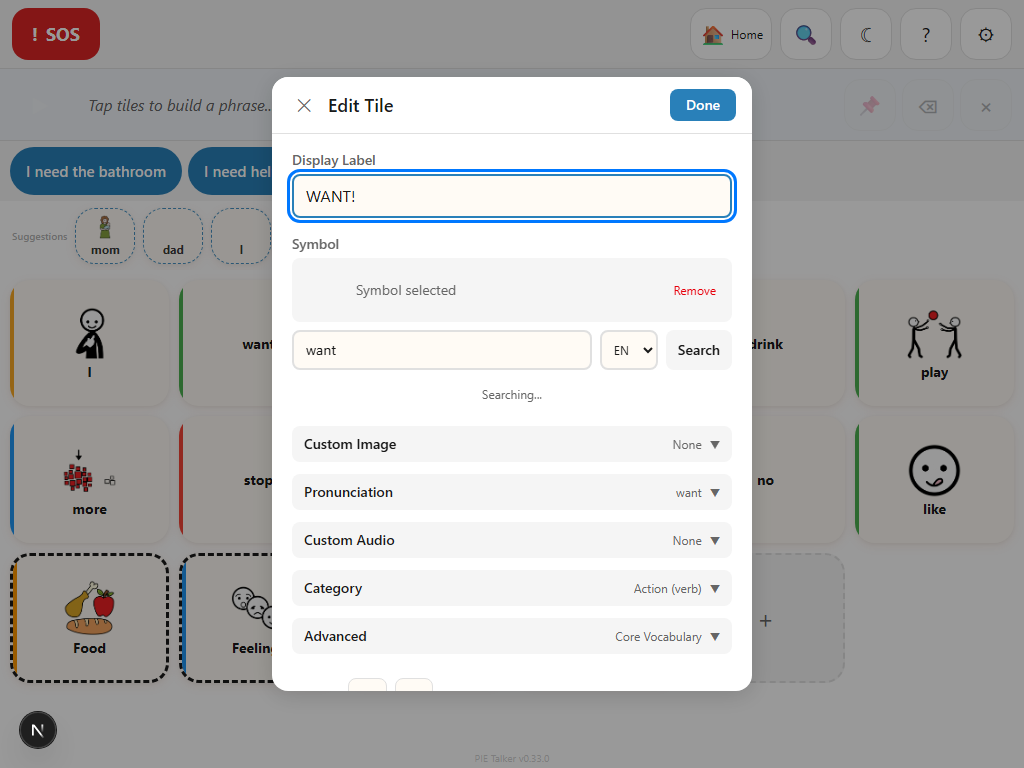
Long-press any tile to edit it. Change labels, pick from 13,000+ ARASAAC symbols, add personal photos, fix pronunciation, or record audio in anyone's voice. Every tile can be exactly what the communicator needs.
Opening the Tile Editor
Every tile on the communication grid is editable. The tile editor is the central place where caregivers, therapists, and teachers can modify any tile to match the communicator's specific needs, vocabulary, and preferences.
How to open the editor
- Find the tile you want to edit on the communication grid.
- On touch devices: Long-press the tile (press and hold for about one second).
- On desktop: Right-click the tile.
- The tile editor panel opens, showing all available options for that tile.
The editor works the same way for every tile—core vocabulary, folder tiles, personal tiles, and tiles that were auto-created during setup. Any tile can be fully customized.
Editing Labels
Each tile has two text fields that you can edit independently: the display label (what appears on screen) and the speech label (what the device says out loud). Most of the time these are the same word, but separating them gives you flexibility.
Display label
The display label is the text shown on the tile in the communication grid. Keep it short—one or two words work best so the text remains readable on smaller tiles. The display label is what the communicator reads to find the right tile.
Speech label
The speech label is the text sent to the text-to-speech engine when the tile is tapped. You might want this to differ from the display label in several situations:
- The display label is an abbreviation ("Dr.") but you want the device to say "Doctor"
- The display label is a symbol-only tile with a short label, but you want a longer spoken phrase
- You want the tile to display a nickname but speak the full name
Symbol Picker
Pie Talker uses the ARASAAC symbol library—the world's largest free AAC symbol set with over 13,000 pictograms. Symbols are universally designed to be clear and recognizable across ages and cultures.
Searching for symbols
- In the tile editor, tap the Change Symbol button.
- Type a word or phrase in the search box. Results appear instantly as you type.
- Scroll through the results to find the best match. Each result shows the symbol with its label.
- Tap a symbol to select it. A preview appears so you can confirm before applying.
Finding the right symbol
ARASAAC symbols cover a vast range of concepts, from everyday objects to abstract ideas, emotions, actions, and social concepts. When searching:
- Try different words if the first search does not show what you need. For example, "happy" and "glad" may return different symbols.
- Use simple, concrete words for the best results. "Eat" works better than "consume."
- Some symbols may surprise you—"pool" might show a billiards table rather than a swimming pool. Preview symbols before selecting them.
Custom Images
Generic symbols work well for most vocabulary, but personal photos can make tiles more meaningful and easier to recognize. The "Mom" tile with an actual photo of Mom. The "home" tile with a picture of your house. The "dog" tile with your dog's face.
Adding a custom image
- In the tile editor, tap Add Image.
- Choose to upload a photo from your device or take a photo with the camera.
- The image cropper opens. Drag to pan and pinch (or use the slider) to zoom until the subject is centered.
- The crop area is always square—matching the tile shape. Tap Save to apply.
Image priority
When a tile has both a custom image and an ARASAAC symbol assigned, the custom image takes priority. If the custom image fails to load for any reason, the tile falls back to the ARASAAC symbol. If no symbol is assigned either, the tile displays text only.
Pronunciation
Text-to-speech engines do their best, but some words—especially names, places, slang, and borrowed words—get mangled. The pronunciation field lets you fix this by typing how the word should sound.
Phonetic respelling
Instead of learning a phonetic alphabet, just type the word the way it sounds. The TTS engine reads your phonetic respelling instead of the display label. Examples:
- "Siobhan" → type "shuh-VAWN" in the pronunciation field
- "Nguyen" → type "win"
- "GIF" → type "jiff" (or "giff"—your call)
- "Abuela" → type "ah-BWEH-lah"
Preview before saving
After entering a phonetic respelling, tap the Preview button to hear how it sounds. Adjust the spelling until you are satisfied. The preview uses the same TTS voice and settings that the communicator hears during normal use, so what you hear in preview is what they will hear on the grid.
Pronunciation priority
Pie Talker follows a priority chain when deciding how to speak a tile:
- Audio recording (if present) — plays the recorded audio file
- Phonetic respelling (if present) — sends the respelling to TTS
- Speech label (if different from display) — sends the speech label to TTS
- Display label — sends the display text to TTS
Audio Recording
One of the most powerful personalization features in Pie Talker. Instead of a synthesized voice, a tile can play back a recording of a real person's voice. Mom's voice on the "Mom" tile. The communicator's own voice saying "I love you" while they still can. A sibling's laugh for the "funny" tile.
Recording audio
- In the tile editor, tap Record Audio.
- Tap the record button and speak the word or phrase.
- Tap stop when finished. The recording appears as a waveform.
- Use the trim controls to cut silence from the beginning and end.
- Tap Preview to listen to the result.
- Tap Save to attach the recording to the tile.
Why this matters in AAC
For people with progressive conditions like ALS, voice banking is essential. Recording your own voice on tiles while you can still speak means you can continue to "sound like yourself" even after natural speech becomes difficult. For young children, hearing a familiar family member's voice can be more comforting and motivating than a synthetic voice.
Audio recordings take priority over all other pronunciation methods. When a tile has a recording, tapping it plays the audio file directly rather than sending text to the TTS engine.
Fitzgerald Key Colors
The Fitzgerald Key is a color-coding system widely used in AAC to help communicators find words by grammatical category. When enabled, tiles are color-coded by their part of speech:
- Yellow — People and pronouns (I, you, Mom, Dad)
- Green — Actions and verbs (go, eat, play, want)
- Orange — Adjectives and descriptors (big, happy, more)
- Blue — Nouns and things (ball, water, school)
- Pink — Social words (hello, please, thank you)
- White/Gray — Other (numbers, miscellaneous)
Assigning a Fitzgerald color
In the tile editor, select the Color Category dropdown to assign or change the tile's Fitzgerald Key color. The color appears as the tile's background tint, giving the grid a consistent visual grammar map.
You can enable or disable Fitzgerald Key coloring globally in Settings → Appearance. When disabled, tiles use the current aesthetic's default styling instead.
Adding and Removing Tiles
Adding new tiles
There are several ways to add new tiles to the vocabulary:
- From the grid: Tap the "+" button at the end of the current folder's tiles to add a new blank tile, then customize it in the editor.
- From Discover: When Enhanced Suggestions is turned on, the prediction row shows a "Discover" section with new words from the full ARASAAC catalog. Tap any suggestion to automatically create a tile for that word with the correct symbol.
- During setup: The setup wizard creates personalized tiles automatically based on the family members, pets, and interests you enter.
Removing tiles
To remove a tile, open the tile editor (long-press or right-click) and tap Delete Tile at the bottom of the editor panel. You will be asked to confirm before the tile is removed. Deleted tiles are removed from the current folder only.
Make every tile personal
Photos, real voices, custom symbols. Pie Talker tiles can be whatever the communicator needs.
Open Pie Talker — Free