Languages & Translation
17+ languages powered by ARASAAC. Display tiles in one language, speak in another. Turn on dual-language labels to show both languages on every tile simultaneously.
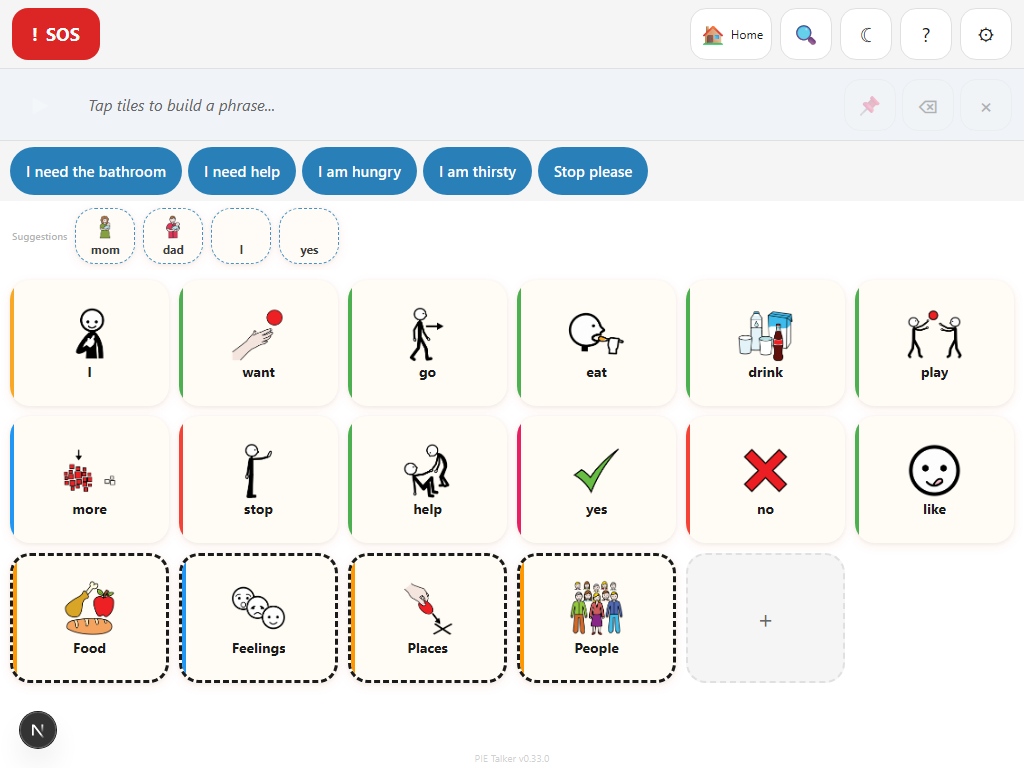
Supported Languages
Pie Talker supports 17+ languages through the ARASAAC symbol library. Each language has localized labels for the entire symbol set—over 13,000 pictograms with proper translations, not machine-generated approximations. ARASAAC labels are maintained by native-speaking professionals and speech-language pathologists around the world.
Display Language vs. TTS Language
Pie Talker separates two language settings that most apps combine into one:
- Display language — Controls the text labels shown on tiles. This is the language the communicator reads.
- TTS language — Controls the language spoken by the text-to-speech engine. This is the language listeners hear.
These two settings are completely independent. You can display tiles in Spanish but have the device speak in English, or display in English but speak in French. This separation is what makes translator mode possible.
How to configure
- Open Settings → Language.
- Set the Display Language to the language the communicator reads.
- Set the TTS Language to the language you want spoken out loud.
- Changes take effect immediately. Tile labels update and the next word tapped speaks in the new TTS language.
Translator Mode
Translator mode is designed for bilingual communication environments—classrooms with multilingual students, therapy sessions where the SLP and client speak different languages, or travel situations where you need to communicate across a language barrier.
Real-world scenarios
Bilingual classroom
A Spanish-speaking child reads tile labels in Spanish (the language they know). When they tap tiles, the device speaks English so the English-speaking teacher understands.
Therapy session
A French-speaking SLP works with an Arabic-speaking client. Tiles display in Arabic so the client can find words. The device speaks French so the SLP hears familiar speech.
Hospital communication
A patient speaks Portuguese. Medical staff speak English. The patient navigates tiles in Portuguese and the device speaks English to the nurse.
Language learning
A student learning German sees German labels on tiles. They tap to hear the German pronunciation, building vocabulary through an immersive AAC environment.
Translator mode does not require any additional setup beyond setting the two language fields. There is no separate "translator mode toggle"—whenever the display and TTS languages differ, Pie Talker is functioning as a translator.
Dual-Language Labels
When dual-language labels are enabled, every tile shows text in both the display language and the TTS language simultaneously. The primary language appears in full size and the secondary language appears below it in a smaller, lighter font.
When to use dual-language labels
- When the communicator is learning a second language and benefits from seeing both translations at once.
- When multiple people use the same device and speak different languages—both can read their own language on every tile.
- When a caregiver wants to verify what the communicator is selecting, even if they do not read the display language.
Enabling dual-language labels
- Open Settings → Language.
- Make sure the Display Language and TTS Language are set to different languages.
- Toggle Dual-Language Labels to on.
- Return to the grid. Every tile now shows both languages.
How Language Switching Works
ARASAAC symbols are language-independent pictograms. A picture of water is a picture of water in every language. What changes across languages is the label—the text attached to each symbol. ARASAAC provides localized labels for each symbol in every supported language.
The technical flow
- When you change the display language, Pie Talker fetches the label set for that language from the ARASAAC API (or from the local cache if previously loaded).
- Each tile's text is updated to the new language's label for its assigned symbol.
- Custom tiles (those with manually edited labels) keep their original text—language switching only affects tiles with ARASAAC symbols.
- The symbol images stay the same. Only the text changes.
Pronunciation in Different Languages
The text-to-speech engine handles pronunciation automatically based on the TTS language setting. When TTS is set to Spanish, the engine uses Spanish phonetic rules. When set to English, it uses English phonetic rules. You do not need to manually configure pronunciation for each language.
TTS voice availability
The available TTS voices depend on the device and browser. Most modern devices include high-quality voices for major languages (English, Spanish, French, German, Portuguese, Italian, Chinese, Japanese, Korean). Less common languages may have fewer voice options or only a single synthesized voice.
- iOS/macOS: Generally has the best TTS voice quality and the widest language support. Premium voices can be downloaded in device settings.
- Android: Google TTS provides solid coverage for major languages. Additional voice packs can be installed from the Play Store.
- Chrome/Windows: Microsoft voices are available for many languages. Quality varies by language.
Phonetic respelling across languages
If you add a phonetic respelling to a tile (in the tile editor), the respelling is sent to the TTS engine in whatever TTS language is currently active. This means a respelling created for English TTS may not sound right when the TTS language is switched to Spanish. If you use translator mode frequently, consider using audio recordings rather than phonetic respelling for tiles that need pronunciation correction.
Communication without language barriers
17+ languages. Translator mode. Dual labels. All free, all offline.
Open Pie Talker — Free