Safety & Content Controls
Content category toggles, emergency SOS tile, and caregiver lock. Keep vocabulary appropriate while preserving communication freedom. Safety gates exist to protect, never to restrict the right to communicate.
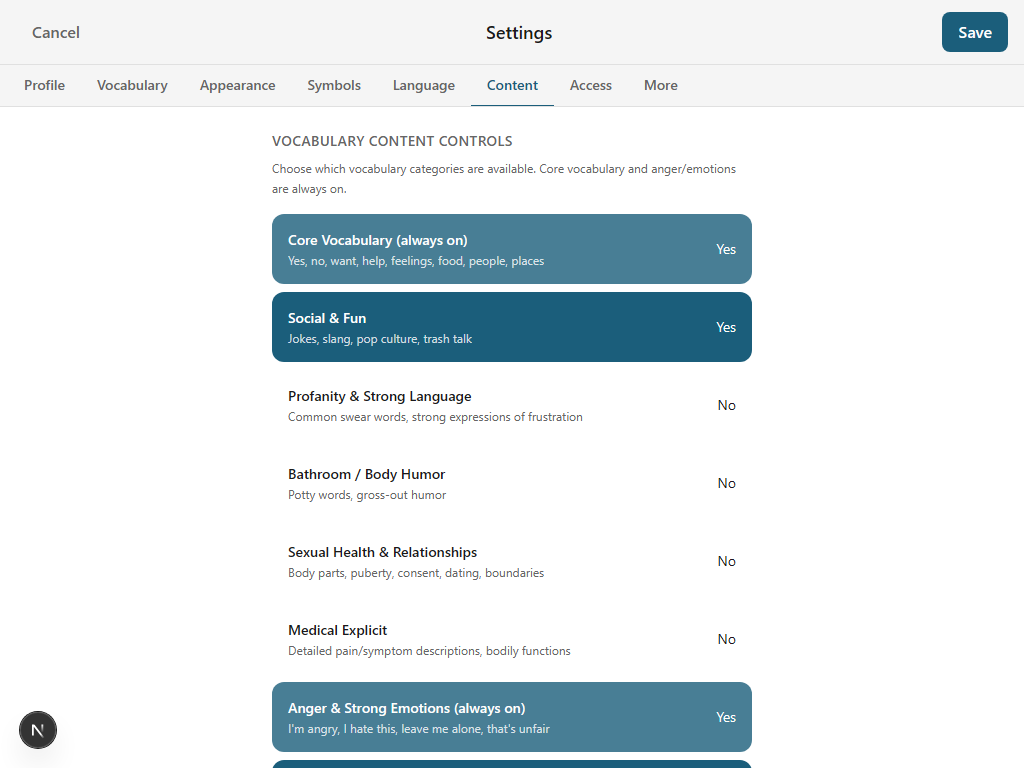
Content Category Toggles
Caregivers control which vocabulary categories are visible using simple on/off toggles. This allows age-appropriate or context-appropriate vocabulary without deleting any tiles. The vocabulary is always there—it is just hidden until the caregiver decides it is appropriate.
The controllable content categories are:
Profanity
Swear words and crude language. Off by default. Some AAC users need access to profanity for authentic self-expression—a caregiver can enable this when appropriate.
Bathroom Humor
Body function words beyond basic toileting vocabulary. The practical words for bathroom needs (toilet, diaper, flush) are always available. This toggle controls the silly/rude extensions.
Sexual Health
Age-appropriate sexual health vocabulary including body parts, boundaries, consent language, and puberty terms. Important for adolescents and adults; typically off for young children.
Medical Explicit
Detailed medical terminology including surgical terms, explicit symptom descriptions, and clinical language. Useful for patients and caregivers in medical settings; typically off for everyday use.
Anger and negative emotions are ALWAYS available. The right to express frustration, sadness, fear, and disagreement is fundamental to communication. A communicator must always be able to say "I'm angry," "stop," "I don't like that," or "leave me alone." These words are never filtered, regardless of content settings.
Content toggles are found in Settings → Content. Each toggle shows a brief description of what it controls. Changes take effect immediately—filtered tiles disappear from the grid and reappear when the category is re-enabled. No data is lost; filtering is purely visual.
Content filtering also affects predictions and the Discover section. When a content category is turned off, words from that category will not appear as suggestions, preventing accidental exposure through the prediction engine.
Manual Vocabulary Management
Category toggles filter vocabulary by content type, but sometimes you need finer control. Pie Talker gives caregivers the ability to manage individual tiles—hide, delete, add, or rearrange—so the communication board shows exactly what the communicator needs and nothing they don't.
Long-Press to Edit Any Tile
Long-press (press and hold) any tile on the communication grid to open the tile editor. From there, you can change the tile's label, symbol, or pronunciation—or hide or delete the tile entirely. This makes it easy to remove a specific word that isn't relevant without turning off an entire content category.
Vocabulary Tab in Settings
The Settings → Vocabulary tab is the central place for managing the full communication board. From here, caregivers can:
- Browse all tiles and folders in the vocabulary tree
- Add new tiles with custom labels, symbols, and audio
- Remove tiles that are not relevant to the communicator
- Reorganize tiles across folders to match the communicator's needs
Board Templates
If you want to start fresh or reset a section, board templates provide curated vocabulary sets. Apply a template to get a professionally organized set of tiles for a specific context—Core Communication, School Life, Social & Fun, and more. Templates can be layered on top of existing vocabulary or used to start clean.
Hiding is not deleting. When a tile is hidden—whether by a content category toggle or by manual action—it can always be restored. The vocabulary data stays intact. Caregivers can reveal hidden tiles at any time from the Vocabulary settings.
Emergency SOS Tile
The SOS tile is always visible, always accessible, and always one tap away. It does not matter which folder the communicator is in, what stage they are at, or what content filters are active—the emergency button is always on screen.
- Always visible. The SOS tile remains fixed on screen regardless of folder navigation. If the communicator is deep inside a Food → Drinks → Hot Drinks folder, the SOS tile is still right there.
- One tap to speak. Tapping the SOS tile immediately speaks an emergency alert. There is no confirmation dialog, no delay, no "are you sure?" prompt. In an emergency, every second matters.
- Cannot be hidden or disabled. The SOS tile cannot be turned off in settings, hidden by content filters, or removed by a caregiver. It is a permanent, immovable safety feature.
- Configurable alert message. The default message is "I need help right now!" but caregivers can customize it to include the communicator's name, specific medical information, or other critical details. The customization is in Settings → Profile.
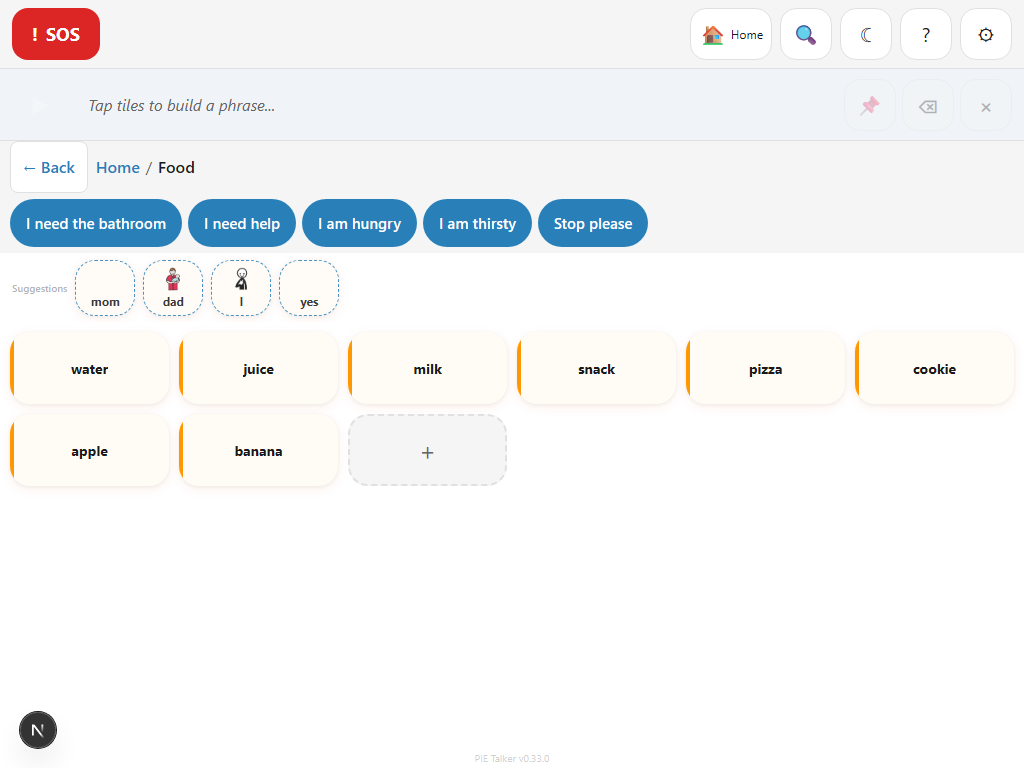
Visible from everywhere
The SOS tile uses a distinctive red color that stands out from the rest of the grid. Its position is consistent across all views, so the communicator always knows exactly where to find it without searching.
Caregiver Lock
The caregiver lock prevents accidental or unauthorized changes to vocabulary and settings. It protects the configuration, never the communicator's ability to speak.
Three Lock Modes
No Lock
Settings are freely accessible. Anyone can open settings, edit tiles, or change the configuration. Good for experienced users who manage their own setup, or for supervised environments where a caregiver is always nearby.
Long-Press to Access
Settings require a deliberate long-press (press and hold for 2 seconds) to open. This prevents accidental entry into settings during normal communication but does not block a determined user. Suitable for younger children or situations where incidental taps are the main concern.
4-Digit PIN
Settings are locked behind a 4-digit PIN that the caregiver sets. The PIN is required to open settings, edit tiles, or change any configuration. The strongest protection, suitable for shared devices or situations where vocabulary integrity is critical.
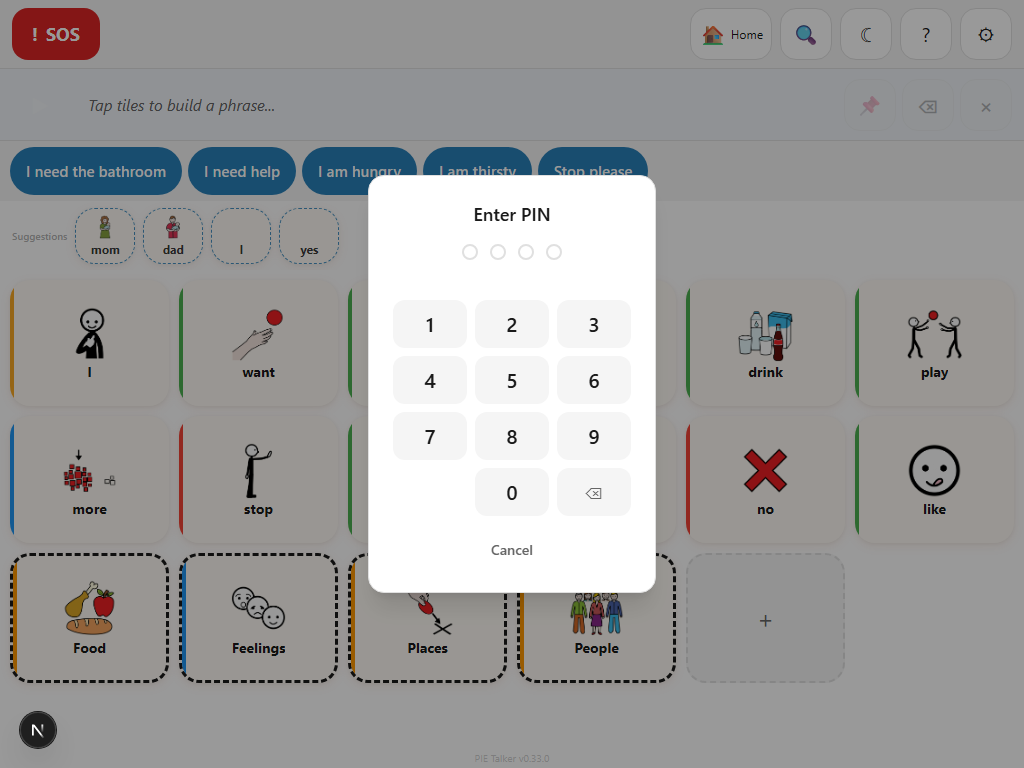
Lock protects settings, not speech
Regardless of lock mode, the communicator can always tap tiles, build phrases, and speak. The lock only affects access to settings, the tile editor, and configuration screens. Communication is never interrupted.
The caregiver lock is configured in Settings → Access → Caregiver Lock. If you forget the PIN, clearing the browser's site data for the app will reset all settings including the lock. (This is a deliberate safety valve—no one should ever be permanently locked out of their own device.)
"AI Off" Toggle
Pie Talker includes a prominent toggle to completely disable word predictions. When "AI Off" is enabled:
- The prediction row is hidden—no word suggestions appear above the grid
- The Discover section (Enhanced Suggestions) is disabled
- The grid shows only the tiles that have been placed or activated from vocabulary packs
- Communication works exactly as a traditional, static AAC board
This toggle exists because AI should suggest, never select. Some communicators and caregivers prefer a predictable, unchanging grid with no dynamic elements. Others find predictions distracting or confusing. The toggle respects that preference.
The "AI Off" toggle is located in Settings → Profile where it is easy to find. It is intentionally prominent—not buried in an advanced settings submenu—because the decision to use or not use predictions should be simple and immediate.
Safety Without Restriction
Every safety feature in Pie Talker is designed around a core principle: communication is a human right. Safety gates exist to protect the communicator and keep vocabulary appropriate for the context, but they must never prevent someone from expressing themselves.
This is why:
- Anger, frustration, and negative emotions are always available, even when other content is filtered
- The SOS tile cannot be hidden by any setting or filter
- The caregiver lock protects settings, never the communication grid itself
- Content categories can be toggled on individually as needs change—a teenager may need access to sexual health vocabulary that a kindergartener does not
- No vocabulary is ever permanently deleted by safety features—filtering is always reversible
AAC research consistently shows that restricting vocabulary reduces communication outcomes. Pie Talker's safety controls are designed to be the narrowest possible gate—filtering only what truly needs filtering while keeping everything else wide open.
Explore More
Safe, appropriate, and always communicating
Content controls that protect without restricting the right to speak.
Open Pie Talker — Free