Works Offline
Load Pie Talker once and it works forever—no internet required. All vocabulary, settings, symbols, and speech are stored on the device. Communication never depends on a wifi signal or cell connection.
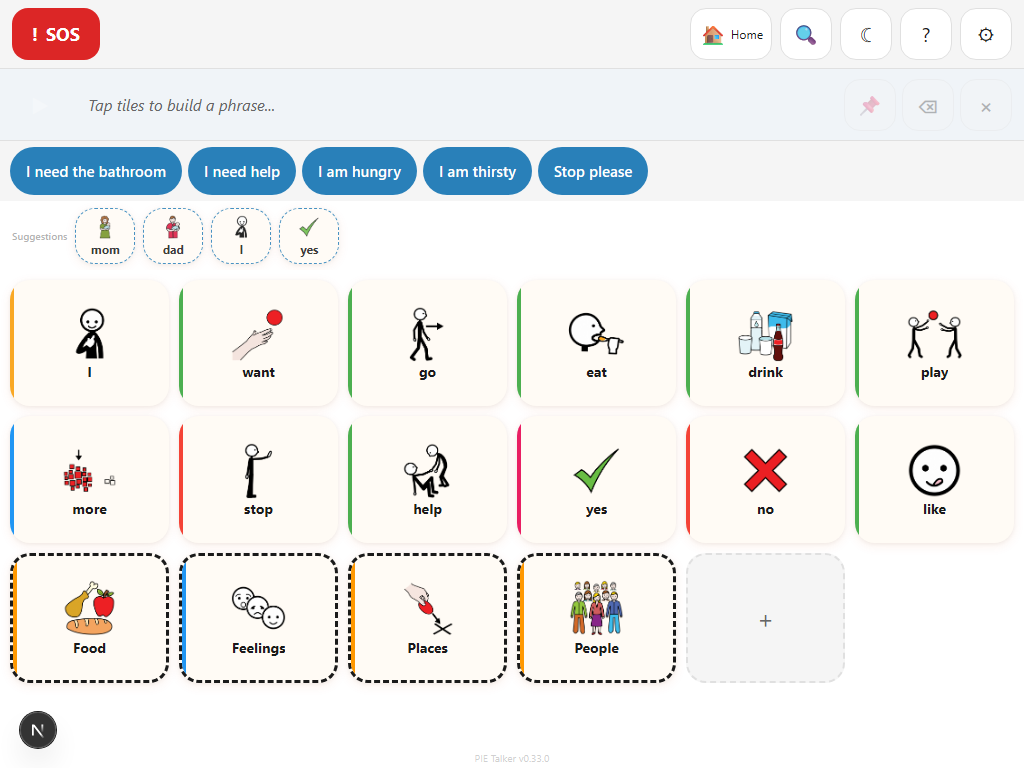
How Offline Caching Works
Pie Talker is a Progressive Web App (PWA). The first time you open the app in a browser, a service worker downloads and caches the entire application—HTML, JavaScript, CSS, fonts, and all current symbol images. After that first load, the app runs entirely from the device's local cache. The network is never touched during normal use.
The service worker uses a cache-first strategy: every request checks the local cache before attempting any network fetch. If the cache has it, it loads instantly. If the cache does not have it (for example, a newly searched ARASAAC symbol), it fetches from the network and adds it to the cache for future use.
App Shell
The core application—all pages, components, navigation, and settings screens—is cached on first load. Opening the app offline shows the full interface immediately, with no loading delay.
Vocabulary & Settings
All vocabulary tiles, folders, profiles, and settings are stored in the browser's local storage and IndexedDB. These are on-device databases that work entirely offline.
Symbol Images
ARASAAC symbols are cached the first time they are displayed. Once a symbol has appeared on screen, it is stored locally and loads instantly from that point on, even with no connection.
Speech Synthesis
Text-to-speech uses the Web Speech API, which relies on voices installed on the device itself. On iOS, Android, Windows, and macOS, voices are built into the operating system and work entirely offline.
One thing requires internet: searching for new symbols. If you search for a symbol that has never been loaded before, Pie Talker needs to fetch it from the ARASAAC API. Everything already in your vocabulary is fully offline. The first setup of a new vocabulary pack also requires a connection to load its symbols for the first time.
Everything Works Offline
Once Pie Talker has been opened at least once with an internet connection, the following all work without any network access:
- Full communication grid. All tiles, all folders, all navigation—exactly as configured.
- Phrase strip and playback. Build sentences and speak them using the device's built-in TTS voices.
- Quick phrases hot bar. Frequently used phrases are always available with a single tap.
- Emergency SOS tile. The emergency button works offline. It does not depend on the network.
- Settings and customization. All settings screens, profile editing, and tile editing work offline.
- Switch scanning and dwell selection. All input methods work offline—no network dependency.
- Word predictions. The on-device prediction engine runs locally. Predictions do not require a server.
- All cached symbols. Any ARASAAC symbol that has appeared in the app is stored and loads instantly.
- All configured audio overrides. Custom recorded or uploaded audio for tiles is stored on-device.
Install as an App — No App Store Required
Pie Talker can be installed directly to any home screen or desktop using the browser's built-in "Add to Home Screen" feature. Once installed, it opens in full-screen mode with no browser chrome—it looks and feels exactly like a native app downloaded from an app store.
How to Install on iOS (Safari)
- Open Pie Talker in Safari at app.pietalker.com
- Tap the Share button (the square with an arrow pointing up) at the bottom of the screen
- Scroll down and tap Add to Home Screen
- Tap Add in the top right corner
- The Pie Talker icon appears on the home screen and opens full-screen
How to Install on Android (Chrome)
- Open Pie Talker in Chrome at app.pietalker.com
- Tap the three-dot menu in the top right corner
- Tap Add to Home Screen or Install App
- Tap Add to confirm
- The icon appears in the app drawer and on the home screen
How to Install on Windows or Mac (Chrome or Edge)
- Open Pie Talker at app.pietalker.com
- Look for the install icon in the browser's address bar (a screen with a down arrow)
- Click Install in the prompt that appears
- Pie Talker opens in its own window, separate from the browser
Installing is optional. Pie Talker works perfectly in any browser tab. Installing to the home screen provides a cleaner full-screen experience and makes it easier for communicators to find and launch the app. There is no functional difference between the installed and browser versions.
All Data Stays on the Device
Pie Talker has no accounts, no login, no cloud sync, and no server that receives your data. Everything—vocabulary, settings, profiles, usage history, prediction data, custom audio—is stored in the browser's local storage and IndexedDB on the device itself.
This is a deliberate privacy choice. AAC users communicate about deeply personal things: their health, their relationships, their feelings, their daily life. That data should not leave the device unless the user chooses to export it.
No Accounts
There is no registration, no email address, no password. Open the app and start communicating. No data is collected about who you are.
No Tracking
Pie Talker does not use analytics, tracking pixels, or third-party scripts that phone home. The only external requests are to ARASAAC for symbol images.
No Cloud Sync
Vocabulary and settings exist only on the device where they were created. Nothing is sent to a server. Phase 2 will introduce optional, opt-in cloud sync for multi-device users.
Because all data is local, it is also easy to back up or transfer: use the OBF Export feature to save your vocabulary as a standard file, then import it on a new device.
Staying Up to Date
When a new version of Pie Talker is released, the service worker detects the update the next time the device is online and the app is opened. The new version is downloaded in the background without interrupting the current session.
The update activates the next time the app is fully closed and reopened. There is no manual update process, no app store to check, and no notification that interrupts communication. The app simply gets better over time.
What Happens to Your Data During an Update
App updates never affect vocabulary, settings, or profiles. Updates only change the app code—the user interface and features. All local data is preserved across every update.
Forced reload if needed. If you need the latest version immediately, you can force a reload: hold Shift and press the browser's Reload button (on desktop), or clear the site cache in browser settings. This downloads the newest version right away. Your vocabulary and settings are not affected by a forced reload.
Version Information
The current app version is always visible in Settings → More → About. If you are reporting a bug or asking for support, include the version number so the team can investigate accurately.
Explore More
Load once. Use anywhere.
No wifi, no cell signal, no problem. Pie Talker works when you need it most.
Open Pie Talker — Free