Vocabulary Management
Add tiles, create folders, organize your vocabulary, and manage your entire communication board. Everything you need to build a vocabulary that fits the communicator perfectly.
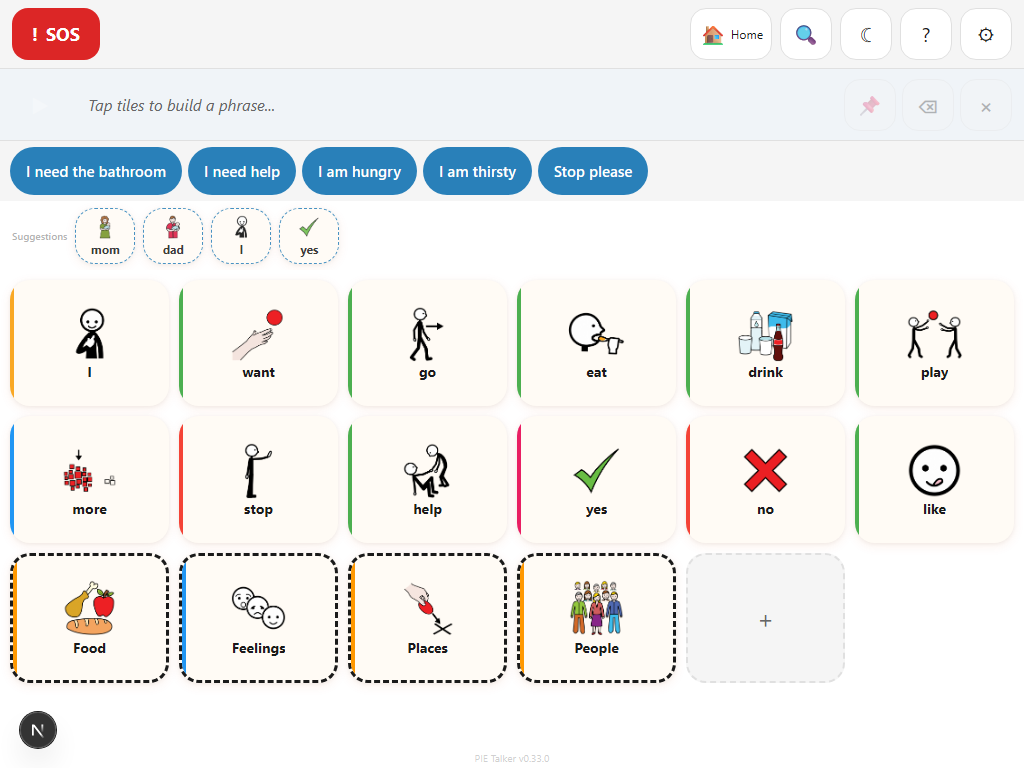
The Communication Grid
The grid is the heart of Pie Talker. It displays tiles arranged in a responsive layout that adapts to your screen. Each tile shows an ARASAAC symbol and a text label. Tap a tile and the device speaks the word aloud using text-to-speech.
The grid density depends on the communicator's communication stage. Stage 1 shows a small number of large tiles. Stage 5 shows a dense grid with many words. The grid automatically adjusts columns and tile size based on the device orientation and screen size.
Fitzgerald Key color coding
When enabled, tiles are color-coded by part of speech: yellow for people, green for verbs, orange for adjectives, blue for nouns, pink for social words. This visual grammar map helps communicators find the right type of word quickly. You can enable or disable this in Settings → Appearance.
Adding New Tiles
There are several ways to add words to the vocabulary:
From the grid
- Navigate to the folder where you want the new tile.
- Tap the + button at the end of the tiles.
- Choose whether to create a word tile or a folder.
- Enter a label for the tile.
- Search the ARASAAC library (13,000+ symbols) to find a matching image.
- Optionally: add a custom photo, set a pronunciation hint, or record audio.
- Tap Save. The tile appears immediately on the grid.
From Discover
When Enhanced Suggestions is enabled (Settings → More), the prediction row shows a "Discover" section with words from the full ARASAAC catalog that are not yet in your vocabulary. Tap any suggestion to instantly create a tile with the correct symbol. This is how vocabulary grows naturally—the communicator discovers new words in context, right when they need them.
During setup
The setup wizard creates personalized tiles automatically. Family members and pets entered during the "People & Interests" step become tiles in a "My People" folder. You can add photos later.
Creating and Managing Folders
Folders let you organize vocabulary into logical groups. Tap a folder to see its contents. A breadcrumb trail at the top shows your current location. Tap any breadcrumb to jump back.
Built-in folders
Pie Talker creates several folders automatically based on your context packs: Food, Feelings, People, Places, Actions, and more. These come pre-populated with relevant tiles.
Custom folders
Create folders for any topic. School subjects, favorite activities, specific locations, daily routines—whatever the communicator needs. Folders can contain other folders for deeper organization.
Folder navigation
- Tap a folder tile to open it
- Breadcrumb trail shows the path: Home → Food → Drinks
- Tap the Home icon to return to the root grid instantly
- Tap any breadcrumb to jump to that level
Editing Tiles
Long-press any tile (or right-click on a computer) to open the tile editor. From here you can change everything about a tile:
- Label — change the display text and speech text independently
- Symbol — search 13,000+ ARASAAC symbols to find the right image
- Custom image — upload a personal photo or take one with the camera (zoom and crop built in)
- Pronunciation — type how the word should sound for the TTS engine
- Audio recording — record a real voice to play instead of synthesized speech
- Fitzgerald category — set the color-coding for grammar organization
- Visibility — hide tiles without deleting them
See the Customizing Tiles page for detailed instructions on each editing feature.
Board Templates
Templates are pre-built vocabulary boards designed for specific needs. Instead of building from scratch, start with a template and customize from there.
- Starter Board — 12 essential tiles for early communicators (yes, no, more, stop, help, want, eat, drink, go, play, bathroom, hi)
- School Board — 24 tiles in folders: Classroom, Subjects, Social, and Needs
- Medical Board — communication tiles for medical settings: pain, needs, people, and health status
- Social Board — greetings, feelings, opinions, and activities for building friendships
Each template comes with ARASAAC symbols pre-assigned. Apply a template in Settings → Vocabulary.
Search Across Vocabulary
Looking for a specific word? The search function scans the entire vocabulary tree—including words inside folders. Type a few letters and matching tiles appear instantly. Tap a result to navigate directly to that tile.
If the communicator can spell, search is the fastest way to find any tile in the vocabulary, no matter how deeply it is nested in folders.
Import and Export
Pie Talker supports the OpenBoardFormat (OBF) standard for sharing vocabulary boards. Export your entire vocabulary as a JSON file to share with therapists, transfer to another device, or keep as a backup. Import boards from other AAC apps or other Pie Talker users.
Find import and export options in Settings → Vocabulary.
Hiding vs. Deleting
When a tile is not needed right now, you have two choices:
- Hide — the tile becomes invisible on the grid but stays in the vocabulary. You can unhide it later in Settings → Vocabulary or by editing the tile.
- Delete — the tile is permanently removed from the folder. If you need it again, you will have to recreate it.
Hiding is almost always the better choice. Vocabulary needs change—a word that is not useful today might be essential next month. Content category toggles in Settings → Content also hide groups of tiles without deleting them.
Build the right vocabulary
Add, organize, and customize every word. The communication board is yours to shape.
Open Pie Talker — Free